
Admissions Portal Account Creation
In order to file an application for admission, you will have to create an admissions portal account.
If you already have created an account in our admissions portal, you can use your e-mail and password that you have already established to login.
If you have not created an account, please scroll to the bottom of the page, and in the small text, click "Don't have an account? Register here."
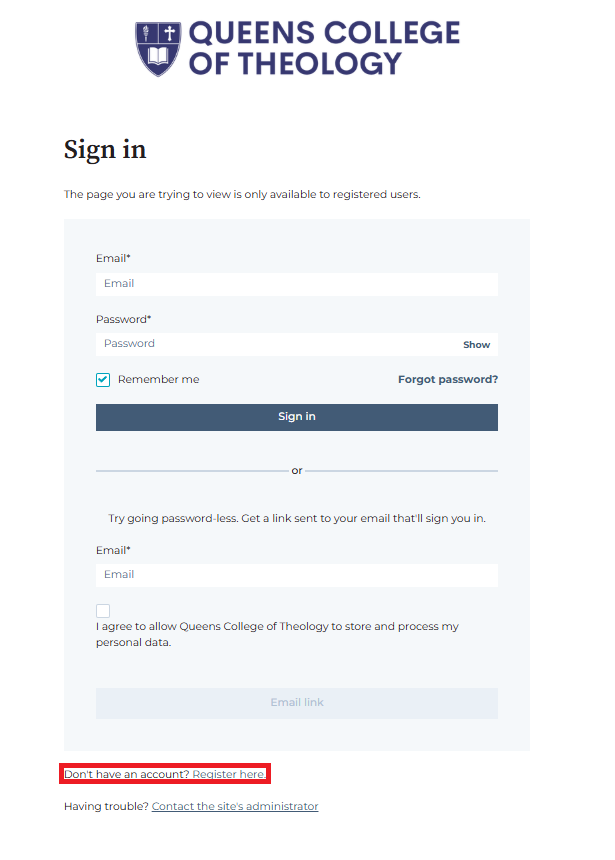
Go through the necessary steps to create your account and be sure to remember your password, or keep it secured. This login information will be useful for you to log back into your account to check the status of your admission application.
Only use your primary e-mail address. We will be sending you frequent updates about your admission application, and in the event that more information is needed, we will be contacting you. Additionally, when you are coordinating meetings with your academic advisor, you will want to use the same primary e-mail address that you used with your admissions portal so we can properly connect your account to your admissions file.
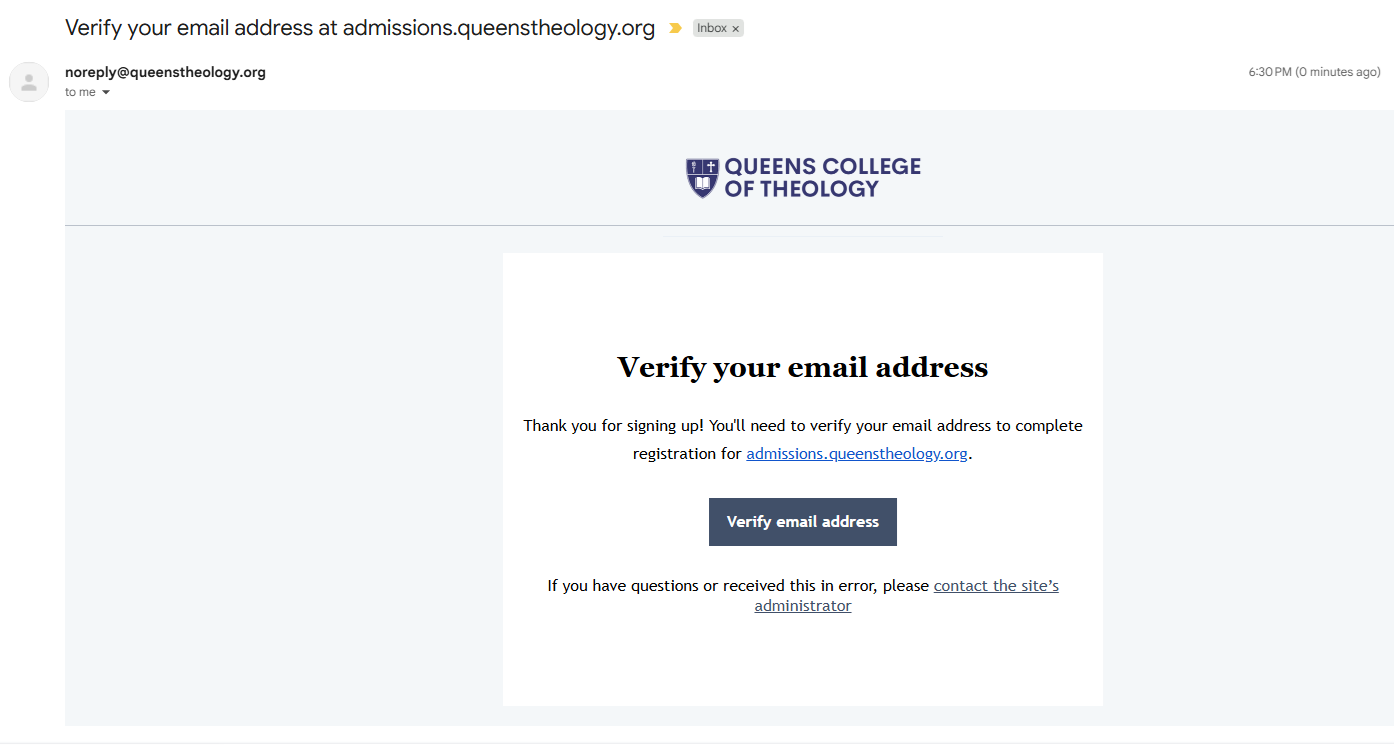
Once you have created your account, you will be sent an e-mail verification. Be sure to click the verification button in that e-mail to confirm your account creation. If you do not see the e-mail in your inbox, please check SPAM or ALL MAIL.
Once you have clicked the verification button in your e-mail, you will be taken to a screen stating that you are approved to log into your admissions portal.
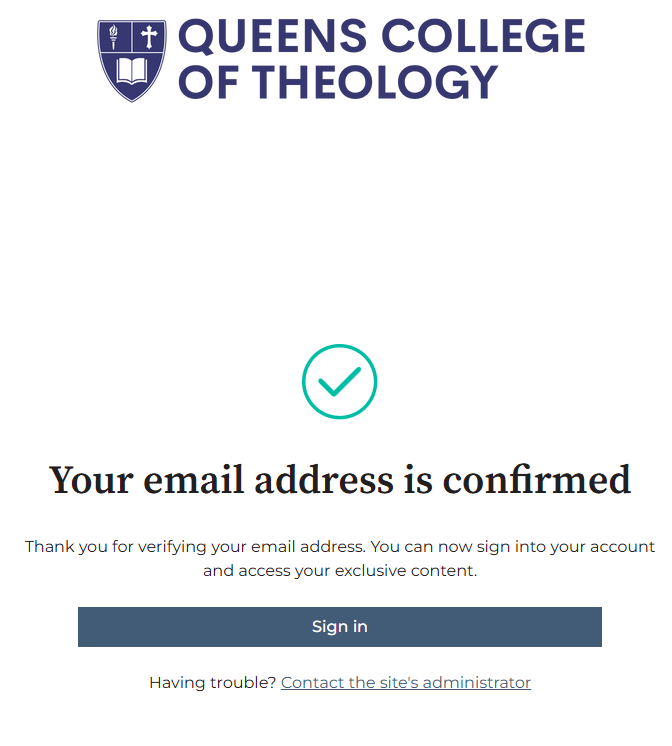 Click the "sign-in" button and enter your e-mail and password that you just created. Once successfully entered you will be taken to the main portal page. It is highly recommended you bookmark this URL so you can quickly log back into your account to check the status of your admission application.
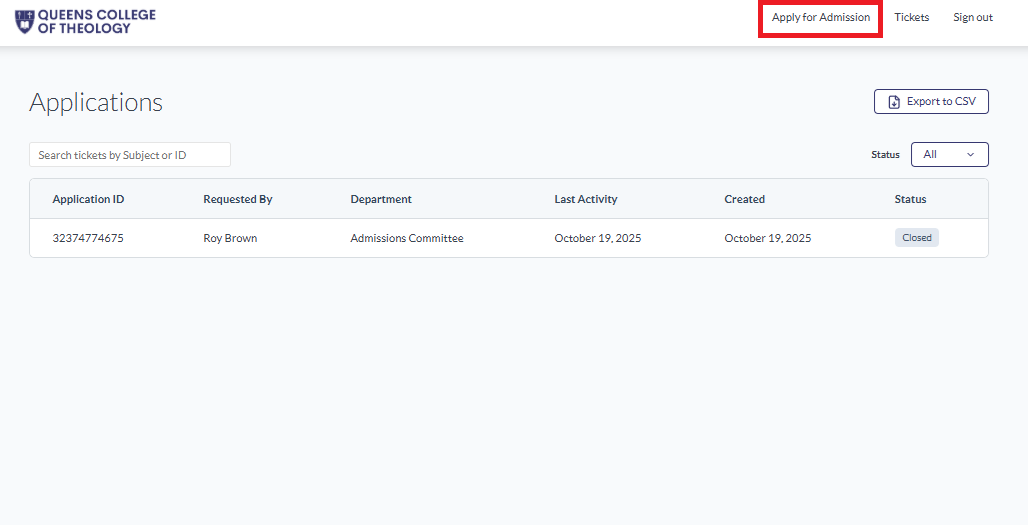
Once you are in the admissions portal, in the upper right hand corner of the screen you will see a button that says "Apply for Admission". Click that button to submit the proper paperwork. The admission application doesn't take long, but you will need to be prepared with information including but not limited to:
1. Names of Prior Schools
2. Dates of Enrollment at Prior Schools
3. Career information in ministry including names, dates, and job title
4. Electronic copy of academic transcripts (You may not use a photo of an academic transcript. These must be electronic copies).
If you are ready to submit your application for admission, click the button below and follow the instructions you just read. We do recommend printing this page so you can easily refer back to it during the account creation process. If you run into an issues, you can always reach out to your academic advisor who will guide you!
Thank you for applying to Queens College of Theology.
Copyright 2026 - Association of Christian Education